



How do I use an existing Palworld world on my server?
Still stuck? Please create a Support Ticket or join our Discord and our team will be happy to help!
If you would prefer for our Support team to upload your world for you, please contact us via Discord or Support ticket and send us your world and we will happily upload/set it for you free of charge!
IMPORTANT: Please note that the host's player data will NOT transfer over and you will have to make a new character. We would recommend the host to put all their items/pals in storage so at least they can retrieve this when they get on. All other player data and characters will be absolutely fine, however.
- Make sure you have the world folder you want to use ready. If you want to use a save from your computer but are not sure how to get it, please see this guide here: https://billing.piglinhost.com/index.php?rp=/knowledgebase/109/How-do-i-find-my-Palworld-world-save-on-my-own-computer.html
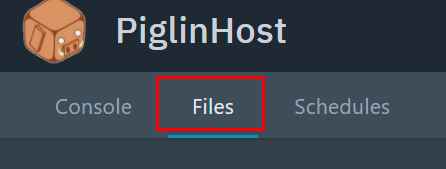
- Log in to your control panel, and then click the Files tab at the top.
- Follow the following folders through: Pal > Saved > SavedGames > 0
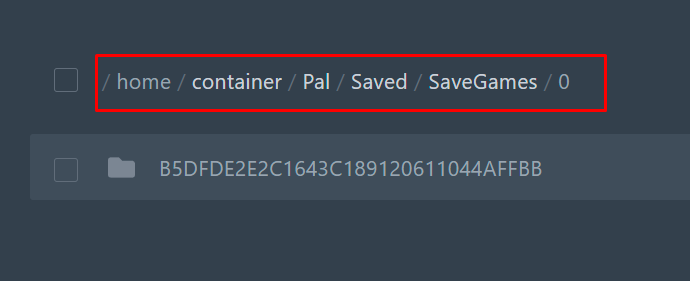
- This folder above is your current server world. If you do not want to keep it, you can simply delete it by right-clicking the folder and selecting Delete. If you want to keep this, please download this folder first or make a Backup first.
- Then upload your new world folder that you want from your Computer. There are two ways you can do this, via FileZilla or by the control panel (If the world is less than 1GB).
- To upload via FileZilla, you simply need to connect to your server and then just drag/drop your world folder in this location. If you're unsure how to connect with FileZilla please see this guide - https://billing.piglinhost.com/index.php?rp=/knowledgebase/17/How-can-i-uploadordownload-files-to-my-Minecraft-Server.html
- To upload via the control panel, find your world folder on your PC. Then right-click this folder, then click 'Compress to ZIP Folder'.
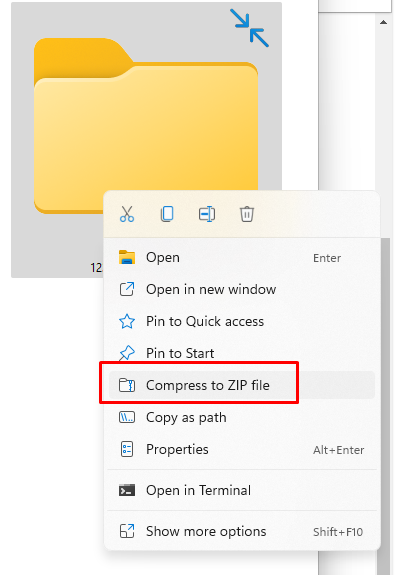
If you are using an older version of Windows or do not see this option, then simply right-click the folder > Click 'Send to' > Click 'Compressed ZIP Folder'.
- Then drag/drop this zip folder that is generated into your server files in the directory above.
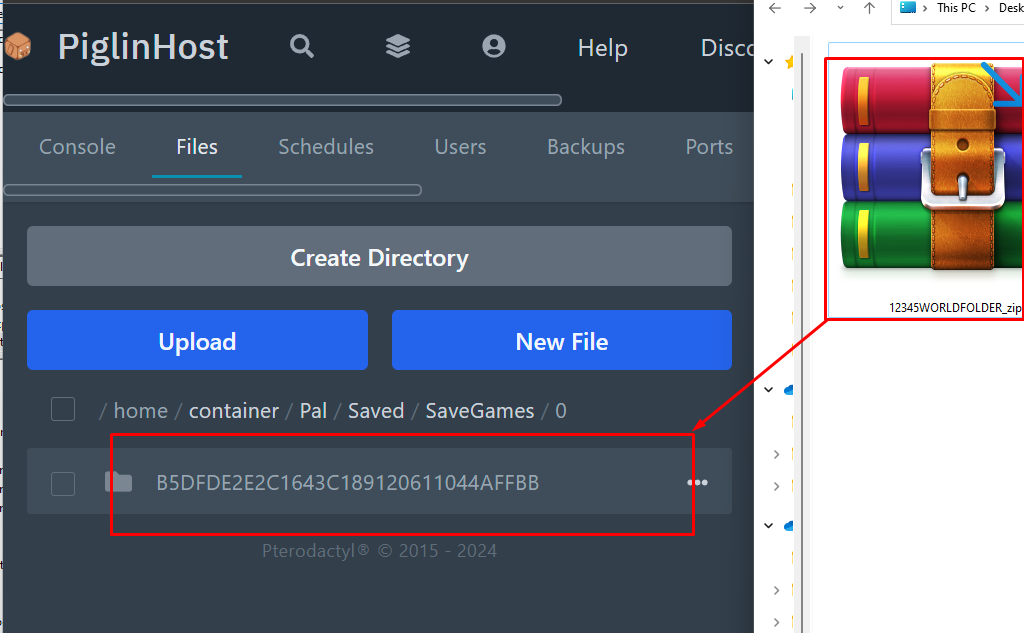
- Once uploaded, right-click the .zip file and then click Unarchive.
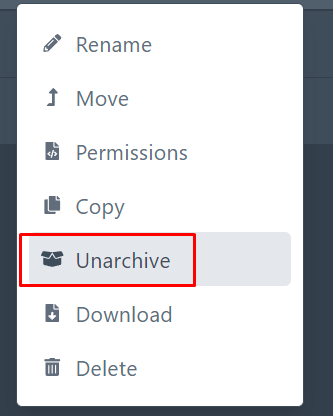
- You should now see your world folder. Copy the name of this folder as you will need it for the next step.
- Navigate back to the Files tab, and head to this directly through the folders. Pal > Saved > Config > LinuxServer

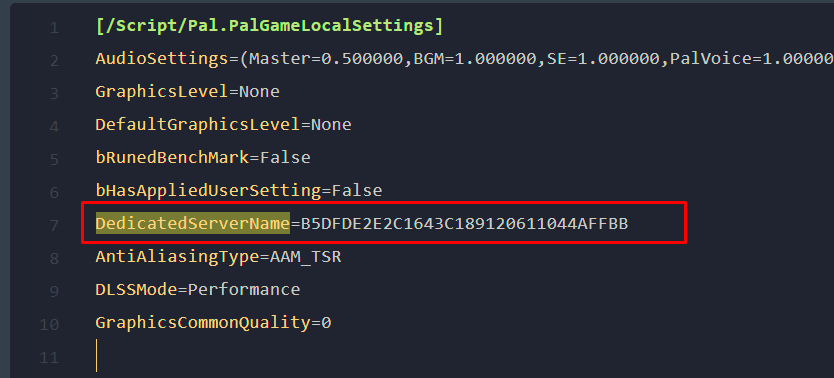
- Locate GameUserSettings.ini and click on it to open.

- On line 7 , you should see this. Change the name to your new world folder name that you copied/uploaded earlier. Then click Save Content on the bottom right hand corner.
- Done! Now restart your server.
If you get stuck for any reason, or would prefer for our Support team to do this for you - please reach out via Discord or Support ticket and we can happily do this for you.
