



How do i cancel my PayPal Subscription?
Still stuck? Please create a Support Ticket or join our Discord and our team will be happy to help!
After cancelling, please ensure that your PayPal subscription is cancelled. Whilst our Billing panel will try to do this for you, sometimes restrictions or different accounts means only the account owner can cancel them. We send this guide with all of our cancellation confirmation emails as standard.
- Visit your PayPal Settings page by clicking - https://www.paypal.com/myaccount/preferences/payments
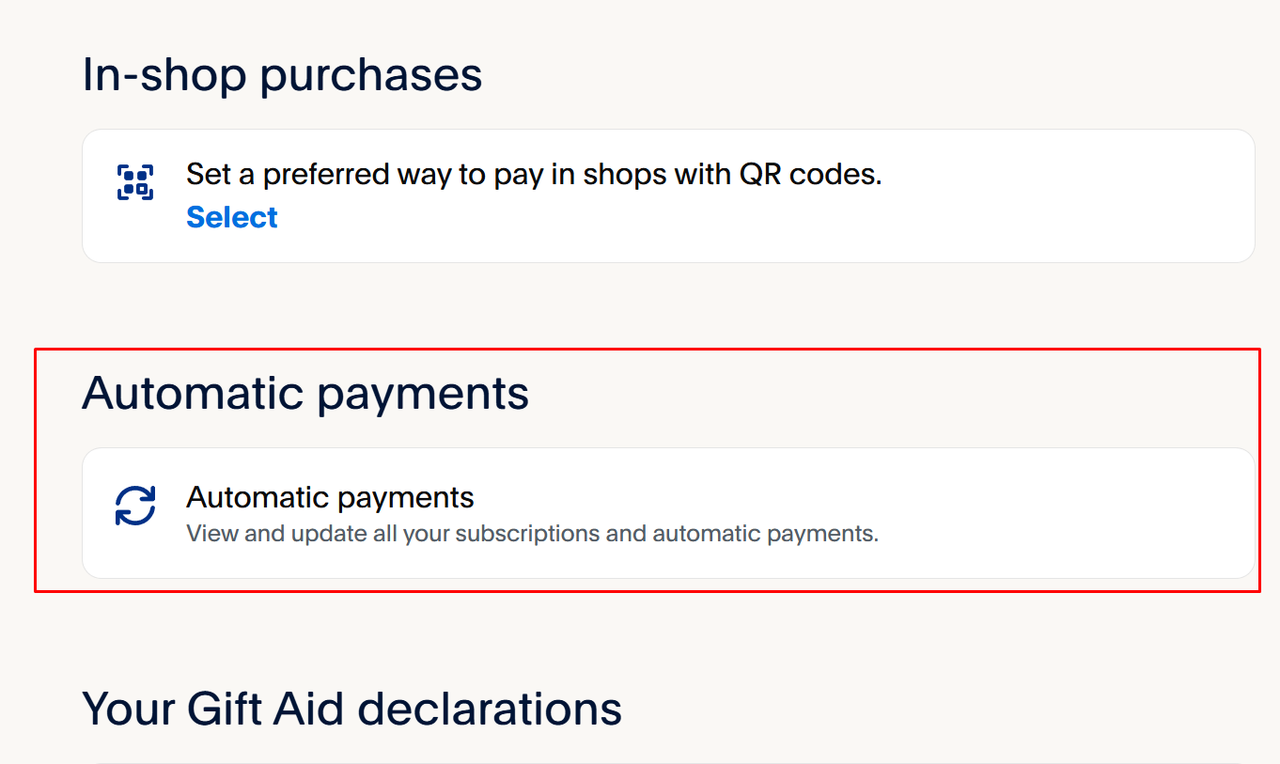
- Scroll to where you see Automatic Payments, as shown below.
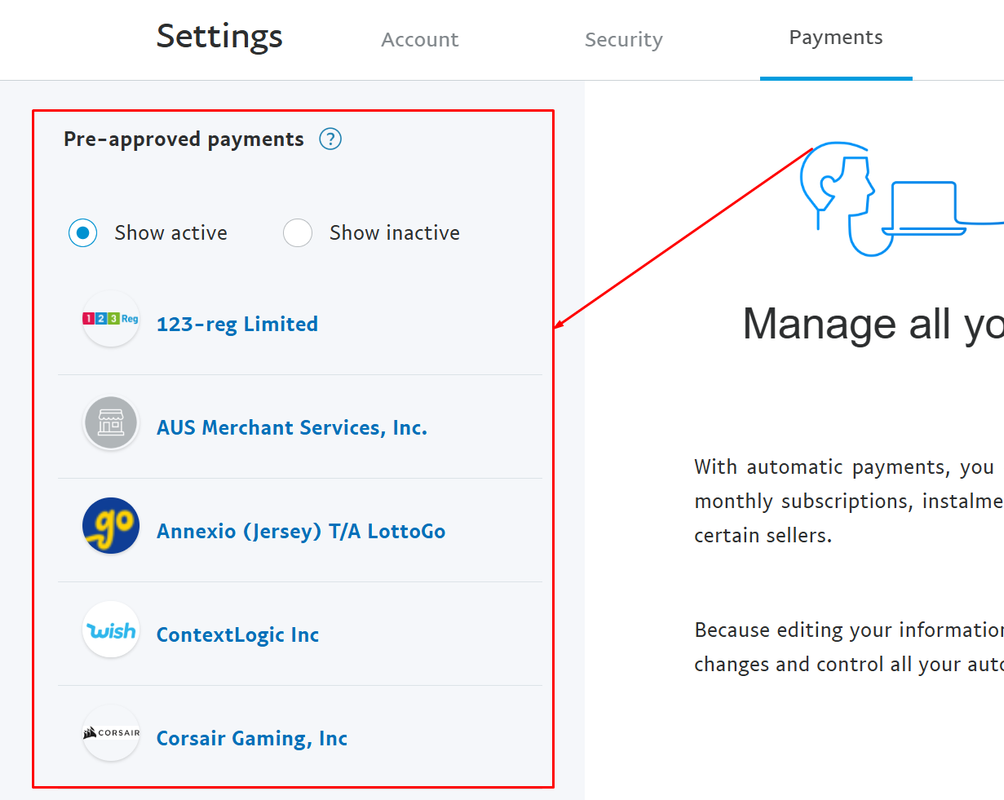
- On the left hand side, you will see all your active PayPal subscriptions.
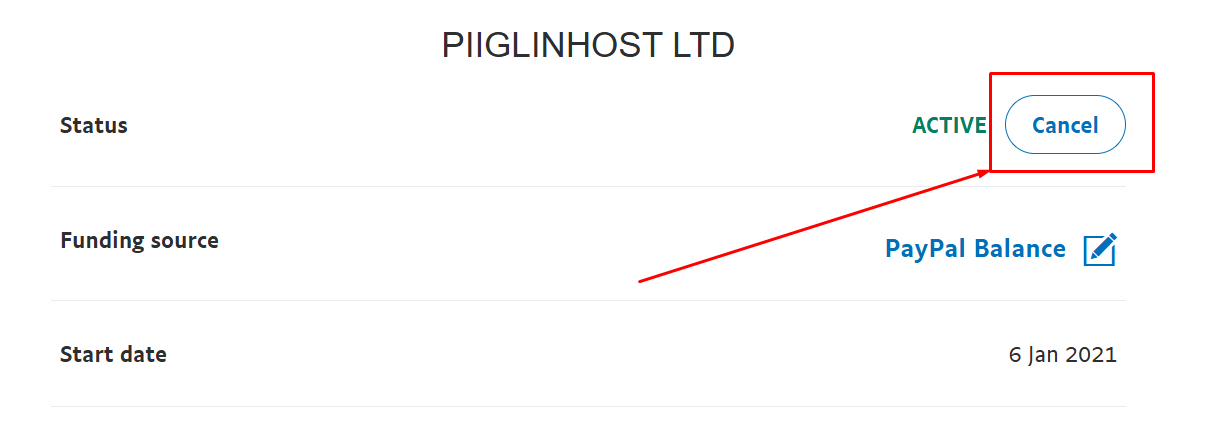
- Locate PiglinHost and click on the subscription. You can then follow through the Cancel button as shown below.
- If your PiglinHost subscription is in the Inactive column, then your Subscription has already been cancelled and therefore its nothing to worry about. Please check your emails junk/spam folder, as PayPal will email you if you have cancelled a subscription. If you are unsure, please reach out to our Support.
Alternatively, please use PayPal's own guide on how to cancel Automatic payments. https://www.paypal.com/us/cshelp/article/what-is-an-automatic-payment-and-how-do-i-update-or-cancel-one-help240
